Alternate ways of Google reverse image search for iPhone, iPad, iPod Touch: Safari, Chrome
How to Reverse Image Search on iPhone, iPad, iPod [Steps & Tips]
Google reverse image search for iPhone without ctrlq.org
Go to the www.images.google.com – the mobile view not showing browse image option, but open the same page in desktop view in your mobile browser (iPhone, iPad, iPod Touch or Android devices).
Learn how to open a web page from mobile view to desktop view in Chrome, Safari and other iPhone, iPad browser. – iPhone X, iPhone 8 Plus, iPhone 7/ 7 Plus, iPhone 6S, 6S Plus, iPhone 5S/5, iPhone 4S/4.
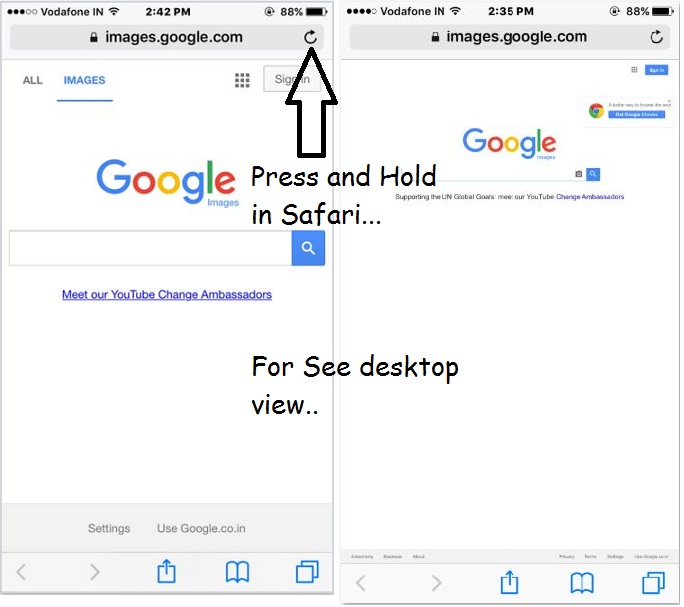
Next, tap on the camera icon in the Google search box. There you can find a related image from the image URL or Copy of image saved on the device (iPhone, iPad, iPod Touch).
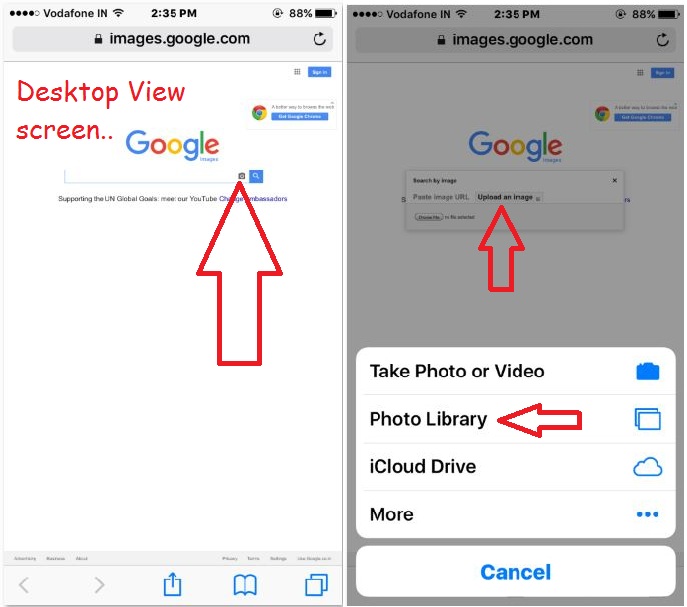
Choose a file from your camera roll. Or take the photo from the camera (This help in google facial recognition search in Google image, Take your photo or other human photo and instantly find on google).
Tricks tested with iPhone 5S, iPhone 6/6 Plus, iPhone 7/7 Plus, iPhone 8/8 Plus, iPhone X/ iPhone X Plus and later new all model, iPad with Safari, Google Chrome Withouut any apps in free.
Google images search for an image using ctrlq.org by labnol
Go to this link: ctrlq.org – There you can see an option for a Select image about you want related images. Next, after upload, Tap on “Reverse Search” button. See picture below,

Browse more images related to you are looking for (Tap on more size)! Also, save it to the Camera Roll. Till today, I haven’t found the app for find google image and Download. have you? Share with me on the comment.
Bing reverse image search
Reverse Image Search on Bing, Go to bing.com on the mobile browser (Safari and Google Chrome iOS).
as of explained above for Google image, Convert your mobile page in Desktop view,

Safari: Press and Hold refresh web page icon in the address bar.
Google Chrome: Tap on Setting icon on iOS Browser, From the drop-down menu, select Request Desktop site.
Now your Page converted into Desktop view on iPhone/ iPad or iPod touch. Zoom in and Find an image from top quick image search link, (Option for bing search by image)

Tap on Upload an image > Upload photo from the Live photo by taking Photo (Bing faces search), Photo Library, iCloud Drive, Dropbox.
Find instantly relative search in the result that’s related to your image search.
That’s it.Jihosoft iPhone Backup Extractor Extract and recover all types of data from iPhone backup files, such as camera roll photos, videos, SMS, contacts, reminders, WhatsApp, and etc.
Gihosoft Free iPhone Data Recovery is a professional iPhone Data Recovery software to get back all your lost text message, photo, video, call history, note, contact and more from iPhone/iPad/iPod Touch.
